Fancy creating a show?
We will accept talk shows, music shows or a mixture of both. Most of our hosts present their shows with talk, but some just play back to back music.
Most of the shows broadcast on Raydio Radio are pre-recorded and last for approx. 60 minutes.
You don’t need a great deal of equipment, just some way of recording your voice, which can just be your mobile smartphone. You will also need audio files of the songs you want to play.
Once you have your songs and voice recordings, you need to put it all together. For this you will need some audio editing, or music creation software on your phone, tablet or PC.
Step 1 : Plan your show
First of all decide what sort of show you want to create. A themed show, such as ’80’s’ music, a genre show such as ‘hip-hop’, or just a mix of stuff you like.
You will need approx 15 tracks (around 3 minutes long) with approx 1 minute of chat between to make up to an hour.
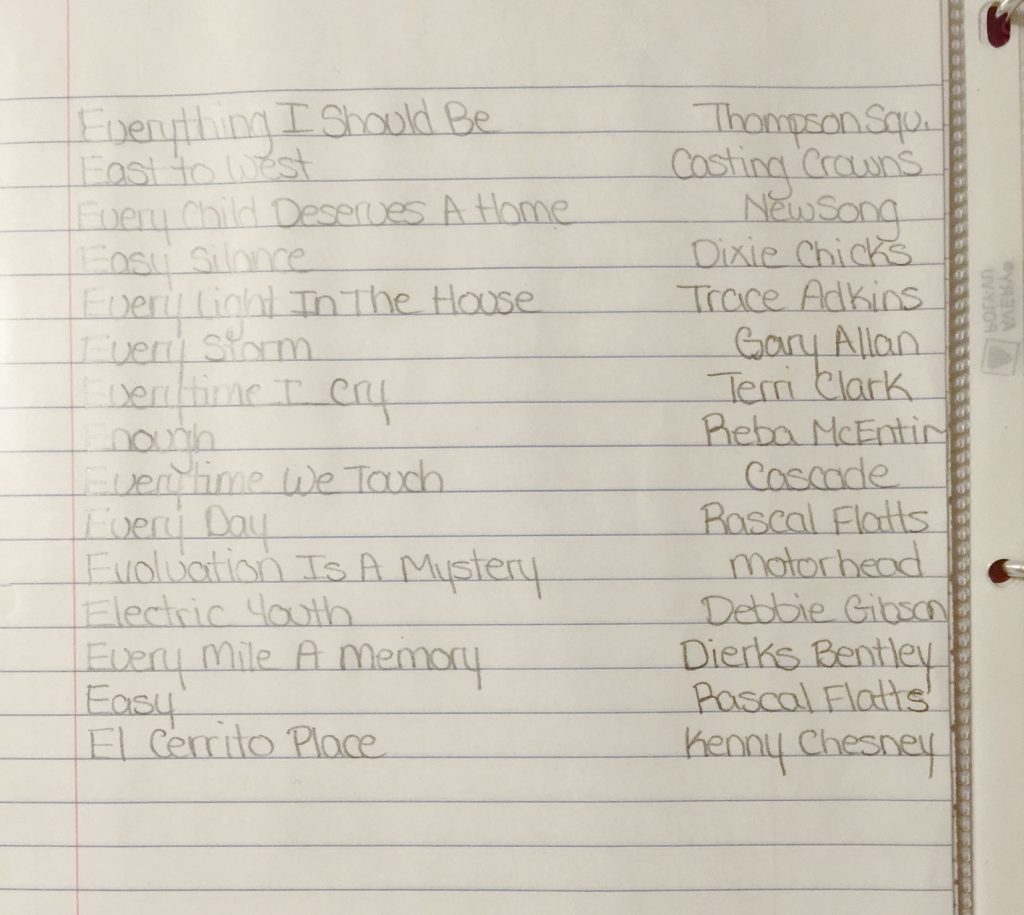
Jot down your playlist on a paper, your computer or, if you already have the audio files you need, create a playlist in iTunes.
Step 2 : Source your audio files
While it is possible to create a show using traditional methods of vinyl or cassette and a mixing desk, the easiest method now is to use audio files. You can use WAV, AIFF, MP4a but by far the easiest and most common is MP3.

If you have CD’s, then you can ‘rip’ them into MP3 files and store them on your computer.
You can also purchase MP3 files from various places such as Google Store, iTunes Store and Amazon.
There are also some websites that sell MP3 files very cheap, such as mp3va.com
If you can’t find the files you want on any of those sites, you may have to download them from YouTube. There are several websites that will download YouTube videos as MP3 files and there are also some software applications you can buy that do it much quicker and easier, such as iTubeGo.
Step 3 : Producing your show
Now you have a plan and have downloaded and collected your audio files together, the next step is to use software to compile them into a radio show.
There are two video tutorials below showing you how to create a show in Audacity and Garageband.
When you save your show, it will save as an Audacity / Gargeband project which can be re-opened and re-edited. What is needed is a single audio file, so you will need to export your show into MP3 format @128kbps
The final MP3 will be approx 70MB in size.
3a : Creating a show using Audacity
One popular and free piece of software, ideal for the task is Audacity, available on Windows, Mac and Linux computers.
Create a new project in Audacity and paste in your vocal recording, then your MP3, then your vocal recording and so on.
The final mix can be exported as an MP3 file @128kbps.
Ben has kindly put together a video tutorial on how to use Audacity to create a radio show:
Creating a radio show in Audacity.
Other software that is great for creating radio shows include Adobe Audition or Apple Garageband. In fact, pretty much any DAW (Digital Audio Workstation) ie: Cubase, Ableton, Logic, Studio One will do the trick, or any audio editing software.
Step 3b: Creating a show using Garageband
Garageband is an app that comes free with Apple Mac OS and iOS. It is primarily designed for making music, but it’s simple to use interface and timeline makes it adaptable to podcasts and radio shows.
Below is a video tutorial put together by Rob explaining the basics.
Step 4 : Submission
Once your show has been created and exported as a single audio file, the next step is to use a file transfer system such as Google Drive, Dropbox or wetransfer.com to email your show to us. We will arrange a schedule date, or you can book the show in using our booking system.
Come on! You know you want to!